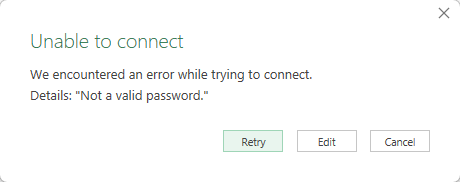
If you've tried to use Power Query to get data from a password protected Access database, you'll know that it doesn't go well. Using the standard From Microsoft Access Database connector allows you to browse for the database and select it, but then gives you a nice message that the password (which you were never prompted to enter) is incorrect.
Naturally that's a bit of a blocker, but are we truly stuck, or is there a way?
How to Get Data from a Password Protected Access Database
As it turns out, the secret to connecting to a Microsoft Access database via Power Query is actually to use an ODBC connector. Let's take a look at exactly how you can do this...
Step 1: Create an ODBC Connection
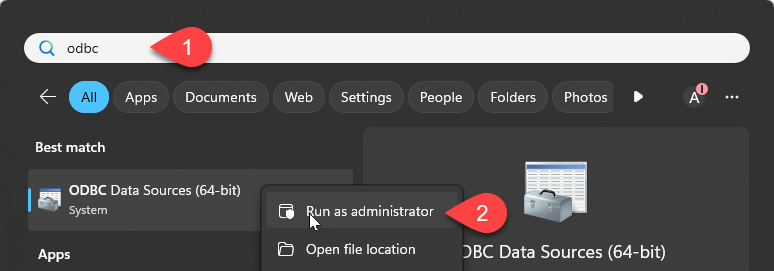
I'm using 64-bit Excel, so I'm going to create my ODBC connection using the 64-bit version of the ODBC Data Sources dialog via the following method:
- Press your Windows key and type ODBC
- Right click the ODBC Data Source (64-bit)
- Choose Run as Administrator
Now, you've got some choices here, depending on how many users actually log onto your machine. Since I have exclusive use of my PC, I'm going to create a "User DSN". If you have multiple users, you'd want a "System DSN" but... if you're in that state I'd honestly call IT to help you configure this portion.
- On the User DSN tab click Add...
- Choose Microsoft Access Driver (*.mdb, *.accdb) - note that there are 3 Access drivers, so get the correct one!
- Click Finish
Step 1A: Configure the ODBC Connection
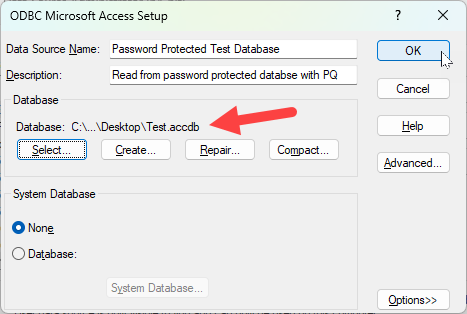
You'll now be taken into the ODBC Microsoft Access Setup screen.
- Enter a logical Data Source name (this is what you will connect to in future)
- Enter a description (always a good practice)
- Under Database click Select
You'll now open into a VERY primitive directory browser:
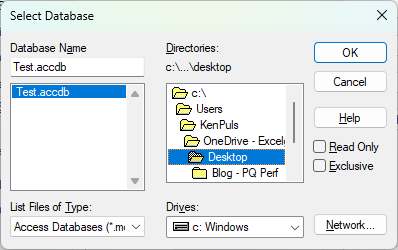
- Browse to locate where your database lives (in the very primitive directory browser)
- Select your database file on the left and click OK
You should now return to the ODBC Microsoft Access Setup screen. Confirm that your database is now listed, then click OK:
You should now see your connector added to the User Data Sources list, so click OK to close the screen.
Step 2: Using Power Query to Get Data from ODBC
Let's connect to our database using Power Query:
- Open Excel (or Power BI if you prefer)
- Go to Get Data -> From Other Sources -> From ODBC
- Choose the connector you just created
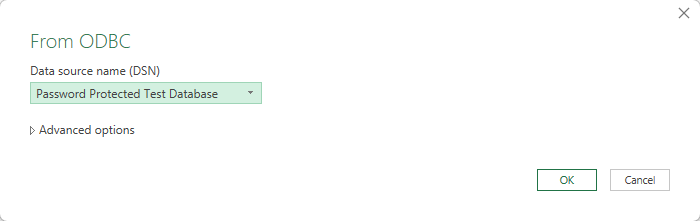
- Click OK
You should automatically get prompted to enter Database security credentials on the next screen... but there is a trick to this. Microsoft Access databases don't have user IDs, but you MUST enter a user ID along with the password - you cannot leave the user name blank.
The answer to this is to enter two ' (single quote) characters (with no space in between):
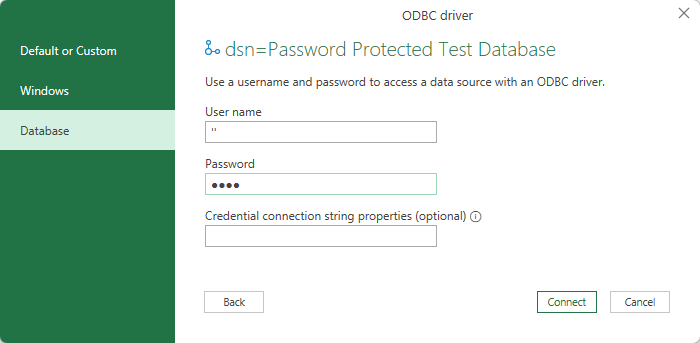
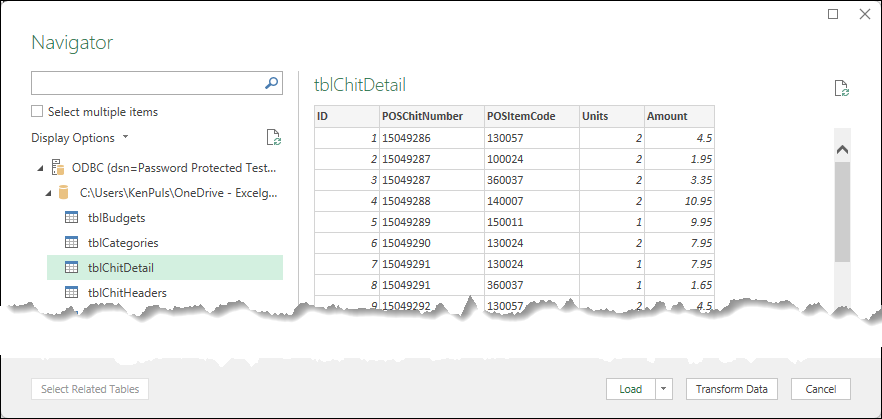
After also adding your password and clicking Connect, you'll see that you are taken to the Navigator to explore the database (and build your Power Queries) as normal.
A Quick Note Related to Credentials
Data credentials for the data source are cached on the local user's machine. In addition to providing the username and password for this connector the first time you log on, you should know that anyone who uses this solution will - in addition to having a consistent file path - also need a DSN configured which users the same connection name as Power Query also targets that in the M code:
let
    Source = Odbc.DataSource("dsn=Password Protected Test Database", [HierarchicalNavigation=true]),
    Database = Source{[Name="C:\<file path here>\Test.accdb",Kind="Database"]}[Data],
    tblChitDetail_Table = Database{[Name="tblChitDetail",Kind="Table"]}[Data]
in
    tblChitDetail_Table
Note: Code has been edited for readability.
Cleaning Up Legacy ODBC Connections
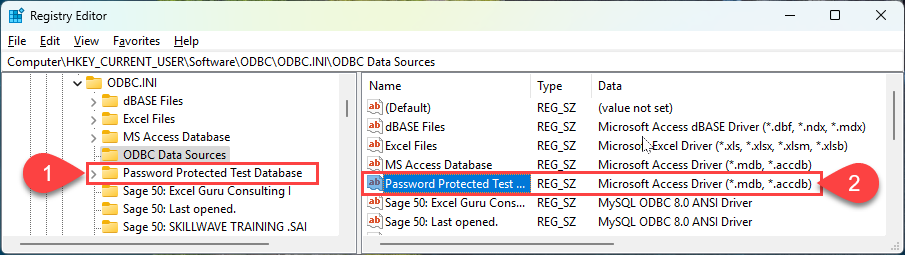
If you are testing, and want to clean up the test connectors you have created, you can find them in your registry. The standard disclaimers apply as far a backups before you edit, but the User DSNs are found here:
Computer\HKEY_CURRENT_USER\Software\ODBC\ODBC.INIIn order to completely remove a DSN you've used for testing:
- Locate the folder with the connector name you created and delete that entire folder
- Open the ODBC Data Sources folder, locate the connector name and delete that entry