One of the items that is very useful in code is the use of constants. These items are simply text masks that translate to numbers, making it easier for us to remember how to interact with the code.
For example, if you put "? vbOkOnly" in the immediate window, you'll see that it resolves to 0. Likewise, "? vbYes" resolves to 6. It's much easier to remember the words than the numbers, which is why Enumerations (or Enums) exist.
Creating your own Constants
The good news is that beginning with Excel 2000, we have been given the ability to program our own Enumerations to help in our coding!
To create your own constants, you basically need to list your enumerations and set them equal to something. This list is then encapsulated in an Enum clause. Personally, I try to make the title descriptive, and also preface each Enum value with a shortened form of the constant. It is also important that your Enum be placed near the top of your module, along with any public variables and API calls. It must be above any other subroutines or functions.
An example of an Enumeration listing meal courses is shown in the code below:
Public Enum FoodCourses
'Author       : Ken Puls (www.excelguru.ca)
'Enum Purpose : Allow use of constants in DesiredFoodCost function
    FoodCourse_Breakfast = 0
    FoodCourse_Lunch = 1
    FoodCourse_Dinner = 2
    FoodCourse_Dessert = 3
End Enum
Using Enumerations in your code
Once you have your Enumerations built, you can use them in your procedures. To illustrate this, I have written up an example of a function that is used to return the target food cost percentage for a specific meal. (These costs bear no resemblance to reality, they are simply used for illustration.)
Function DesiredFoodCost(ByVal MealType As FoodCourses) As Double
'Author       : Ken Puls (www.excelguru.ca)
'Macro Purpose: Demonstrate the use of Enumerations
    Select Case MealType
        Case Is = FoodCourse_Breakfast
            DesiredFoodCost = 0.32
        Case Is = FoodCourse_Dessert
            DesiredFoodCost = 0.43
        Case Is = FoodCourse_Dinner
            DesiredFoodCost = 0.52
        Case Is = FoodCourse_Lunch
            DesiredFoodCost = 0.35
        Case Else
            DesiredFoodCost = 0.5
    End Select
End Function
The other nice thing is that the Enumerations expose themselves to intellisense as we code. The picture below is a screen capture of the procedure as it was being written. I simply pressed Ctrl+Spacebar part way through the word to bring up the list of items that VBA is aware of:
So Now What?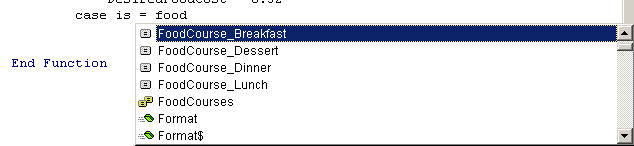
This is where the really good part starts. While it's great that you can use Enumerations like the above, the real power starts showing when you now start to call your functions. If you examine the function above closely, you'll see that I used the Enumeration in the parameter portion of the function:
Function DesiredFoodCost(ByVal MealType As FoodCourses) As Double
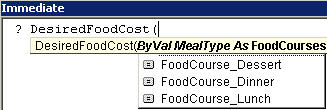
This is very important, as it forms the link to the Enumeration. The net effect is that you can now use the Enumerations as constants in your code when you call the function. To illustrate, I began typing a line to evaluate a DesiredFoodCost in the immediate window. As soon as I typed the open brace, the intellisense immediately exposes our list of custom constants!
Enumeration Versatility
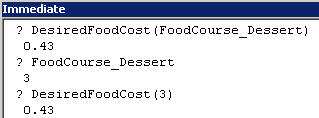
If you recall, at the beginning of the article, I mentioned that Enumerations translate numerical values into textual words that we can remember. To illustrate this, try running the following in the immediate window:
? DesiredFoodCost(FoodCourse_Dessert)
The value that should be returned is 0.43, as we can see from the function used above.
Now, run the following code in the immediate window to learn the numerical value (of the Enumeration) for FoodCourse_Dessert:
? FoodCourse_Dessert
The value returned should be 3. You can check the Enumeration to see that this is true.
Finally, let's prove that the Enumerations are just converting our words to numbers. If what I've told you is correct, you should be able to just subsitute the number for the words in our call to the DesiredFoodCost function... so let's try it:
? DesiredFoodCost(3)
So what did you get? My results are below.